Laptops
Acer Predator 17 G9-793 Repair: Shut Down While Gaming Due to a Blown MOSFET
An Acer Predator 17 shut down mid-game and refused to turn back on. Instead of replacing the entire motherboard, we tracked down and replaced two faulty components.
A hard drive that isn't recognized by BIOS or diagnostic tools isn't necessarily dead. Here is how we brought a Seagate Barracuda 2TB back to life.
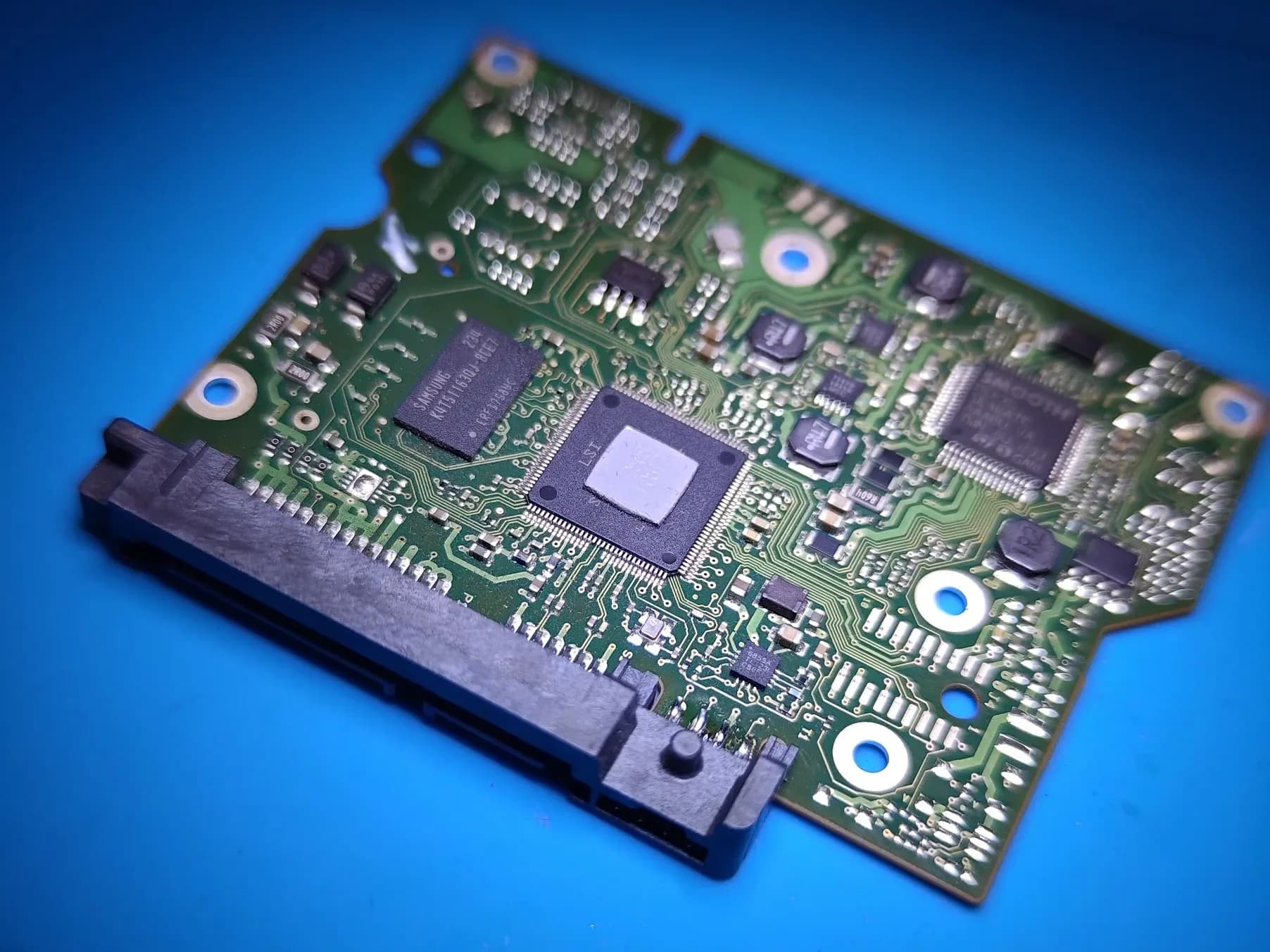
An acquaintance reached out to us with a frustrating problem. The night before, he had unplugged his PC from the wall socket, and the next day discovered that his Seagate Barracuda 2TB wasn't being recognized and refused to spin up. His latest studio projects were stored on that drive.
The drive wasn't recognized by anything. BIOS couldn't see it, neither could Windows, and diagnostic tools that usually at least detect the drive model came up empty. When a hard drive disappears like this, most people assume that it and all its data are lost for good. Often, however, the issue can be fixed.
If the BIOS doesn't detect the drive at all, the issue almost always lies in one of two areas:
The electronics (PCB): The printed circuit board on the bottom of the drive houses the controller, RAM cache, and motor driver. A damaged component here can completely disable the drive.
Firmware and system tables: Every hard drive stores a service area on its platters that users cannot see. This is where the configuration tables telling the drive how to operate are stored. If this data gets corrupted, the drive cannot reach a ready state, and the computer will fail to detect it.
With this Seagate, the issue turned out to be in both areas.
We started with the electronics. After checking the PCB component by component, we identified a failed controller. We swapped it with a board from an identical donor drive.
Once the PCB was working, we connected to the drive via its serial debug port. This is a terminal interface used to send commands directly to the drive's firmware without going through Windows or the BIOS. Only then did we discover the second issue: part of the internal system tables was corrupted.
The repair process involved several steps:
Replacing damaged components. We used a PCB from a donor drive.
Transferring original ROM adaptives. Every hard drive is individually calibrated at the factory. These calibration settings (known as adaptives) are unique to each specific drive, meaning you cannot simply swap PCBs and expect the drive to work. We preserved and transferred the original drive's unique ROM adaptives.
Restoring factory parameters. Through the debug terminal, we repaired the corrupted system tables and restored the drive's operating parameters to their factory state.
The drive came back online, after which we scanned for bad sectors, created a full backup, and safely transferred all the data to a new drive.
A new 2TB hard drive is not expensive. However, if the damaged drive holds irreplaceable photos, documents, or project files that aren't backed up elsewhere, the data is worth far more than the hardware itself. Simply buying a replacement drive solves the hardware issue, but it recovers zero files. Repairing the PCB and firmware of the original drive provides a real chance of getting everything back. Most repair shops do not undertake this kind of repair because it requires component-level work and low-level firmware access.
Best practice after such an incident is to immediately back up important data to another medium and maintain a regular backup routine going forward.
If you have a hard drive that has disappeared from your computer, won't spin up, clicks, or isn't detected by BIOS, do not open it and avoid running random "repair" utilities—they can easily make the damage worse. Our workshop is located in Gotse Delchev at 34 Targovska St, and we accept devices from all across Bulgaria via Econt and Speedy.
Contact us at 0886 550 529 or visit maistor-zhichko.com
Keep reading
Laptops
An Acer Predator 17 shut down mid-game and refused to turn back on. Instead of replacing the entire motherboard, we tracked down and replaced two faulty components.
Gaming consoles
A vintage Bulgarian electronic dart machine was stuck on a single game with zero documentation available. The fix was hidden deep inside the machine's own code.